
_edited.png)

Event Slideshow Formats: 5 Files to Bring for Reliable Playback

For editing, save your slideshow as PPTX. For a clean auto-run presentation, use PPSX. For sharing something nobody can accidentally mess up, export a PDF. Need it on Instagram or a laptop with no PowerPoint installed? Export MP4. Sharing a single slide as an image? JPEG for photos, PNG for graphics. Show files are commonly built this way for events on Oahu, and this combination tends to survive real venue challenges.
TL;DR:
PPTX remains the default PowerPoint format, offering better compression, recovery, and compatibility due to its ZIP structure of XML files.
Exporting slides as MP4 preserves animations, timing, and audio, making it ideal for videos, social media, and venues lacking presentation software.
Always test final files on the actual venue equipment and carry a PDF and MP4 backup to prevent playback failures during events.
Sending a PDF fallback with a separate MP4 video covers most playback scenarios, especially when audience interaction or timing precision is critical.
Table of Contents
Quick Reference: Common Slideshow Extensions and When to Use Them
Editable Presentation Formats: What PPTX, PPT and ODP Actually Are
Share and Final-Distribution Formats: PPSX, PDF, Images, or MP4
Media Inside Slides: Recommended Formats and Troubleshooting Tips
Compatibility: What Opens What (PowerPoint, Google Slides, Keynote and Viewers)
A Concise Checklist: Pick a Format and Package Your Files for Reliable Playback
How to Save or Export from PowerPoint, Google Slides and Keynote
Terriffics Perspective: Lessons From Event Playback and Slideshow Creation
Book Terriffics’ Slideshow Creation Service for Reliable Event Playback
Quick Reference: Common Slideshow Extensions and When to Use Them
You don’t need to memorize a dozen file types. You need to know which one to reach for at the moment you need it. Here’s the cheat sheet we hand new event coordinators on our own team:
.pptx — Your working file. Editable, compact, the modern PowerPoint default.
.ppt — Legacy binary format from PowerPoint 97 to 2003. Use only for very old software compatibility.
.pptm / .ppsm — Macro-enabled versions of PPTX/PPSX. Only use these if your deck actually runs VBA macros; otherwise they just add security warnings for no reason.
.ppsx / .pps — Opens directly into full-screen slideshow mode instead of edit view. Great for handing off a “just press play” file.
.odp — OpenDocument Presentation, the open-standard editable format used by LibreOffice Impress and others.
.pdf — Fixed-layout, non-editable, opens anywhere. The safest fallback format that exists.
.jpg / .jpeg — Compressed photo format, ideal for exported slide images.
.png — Lossless image format, best when you need transparency or crisp text/graphics.
.tif / .tiff — High-quality uncompressed image, rarely needed for slideshows but common in print workflows.
.mp4 — The video export format for animated or timed slideshows.
.avi — Older video container, larger files, spottier compatibility.
.mp3 / .wav — Audio formats for narration or background music tracks.
Before exporting anything, lock in your slide size. Widescreen 16:9 has been the default aspect ratio for years, and choosing it up front avoids the stretched or letterboxed look you get when older 4:3 decks meet modern screens. Export your images and video at a resolution that matches your target display, typically 1920×1080 for Full HD projectors and TVs.
PPTX has been the default PowerPoint format since Office 2007, when Microsoft replaced the old binary .ppt structure with a ZIP-based, XML-compliant package, according to Microsoft’s own Office 2007 compatibility guide. Nearly two decades later, it’s still the format every major slideshow tool treats as the baseline.
Editable Presentation Formats: What PPTX, PPT and ODP Actually Are
PPTX isn’t just “the new PPT.” It’s a fundamentally different kind of file. Under the hood, a PPTX is a ZIP archive full of XML documents, standardized as ISO/IEC 29500 and known in Microsoft’s own ecosystem as Office Open XML. Each slide, theme, master layout, and embedded image lives as a separate XML part inside that package. That structure is why PPTX files compress better, corrupt less often, and recover more gracefully than the old .ppt format ever did.
One practical trick worth knowing: because a PPTX is technically a ZIP file, you can rename the extension to .zip, open it, and pull out every embedded photo or video at full resolution. It’s a handy shortcut when a client sends you a deck and you need the original images back, without re-exporting anything.
Legacy PPT is the binary format used from PowerPoint 97 through 2003. It’s bulkier, more prone to corruption on large files, and lacks some of the newer formatting features. You should still use it in one specific case: when you know your recipient is running an ancient version of PowerPoint that can’t open PPTX without a compatibility pack. Outside of that, there’s no reason to default to it anymore.
ODP (OpenDocument Presentation) is the open-standard alternative, governed by the OpenDocument Format specification and used natively by LibreOffice Impress and other free office suites. It’s a solid editable option if your organization avoids proprietary formats or you’re collaborating with someone who doesn’t have Microsoft or Apple software. The trade-off: opening an ODP file in PowerPoint (or a PPTX in Impress) can shift fonts, reflow text boxes, or flatten certain animations. If you’re moving between suites, always check the deck after conversion before you present it.
A few extra notes worth flagging:
.pptm and .ppsm are macro-enabled versions of PPTX and PPSX. They carry embedded VBA project code, which means antivirus software and email servers often flag or strip them.
Saving a macro-enabled file as plain .pptx automatically removes the macros, according to Microsoft’s own PowerPoint file format specifications. That’s a fast way to sanitize a file before sending it externally.
If you don’t specifically need macros, don’t use the macro-enabled extensions. They add a security warning for zero benefit.
Share and Final-Distribution Formats: PPSX, PDF, Images, or MP4
Once your slideshow is finished, the format question changes. You’re no longer asking “what’s easiest to edit?” You’re asking “what’s least likely to break when someone else opens it?”
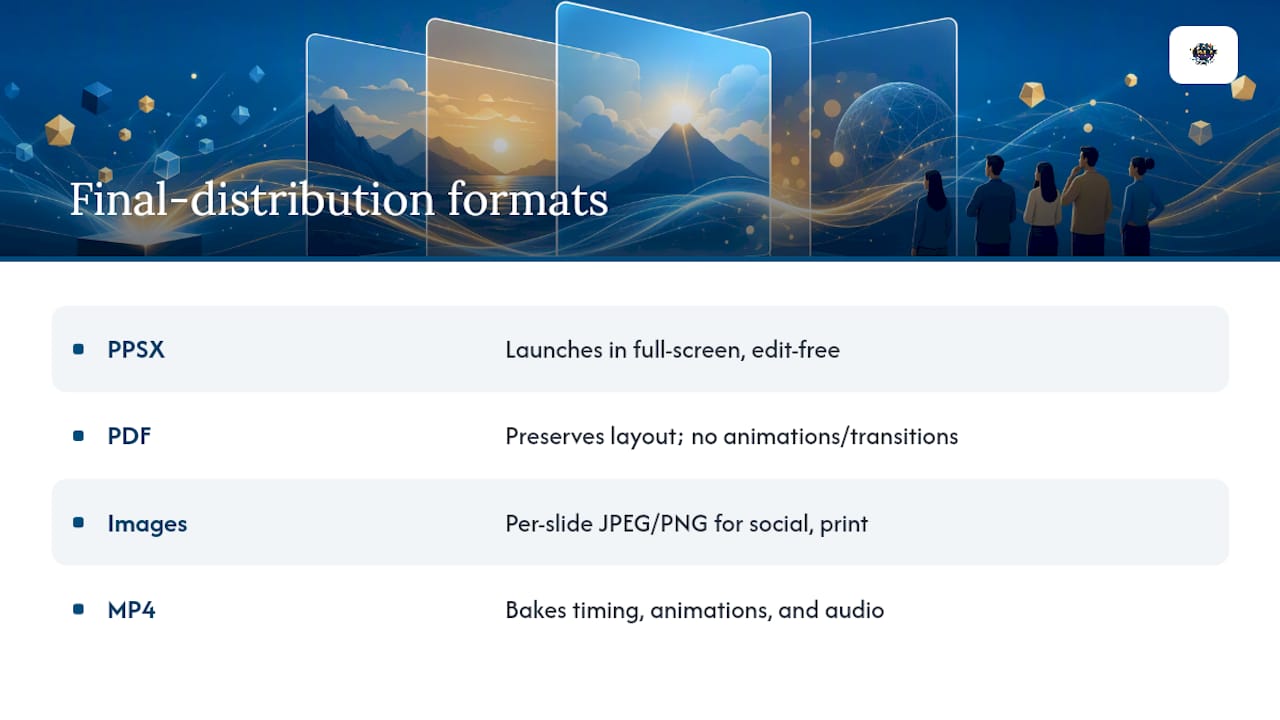
PPSX launches straight into full-screen presentation mode, skipping the editing view entirely. It’s the right pick when you want a client, teacher, or family member to double-click a file and immediately see the show, with zero risk of them accidentally clicking into edit mode and rearranging your slides.
PDF is the safest format for guaranteed layout. According to Microsoft’s file format guidance, when a deck must stay uneditable and identical across every device, PDF or PPSX are the recommended choices. PDFs preserve fonts, spacing, and images exactly as designed, whether opened on a phone, a laptop, or a printer. The trade-off: no animations, no slide transitions, no auto-advancing timing. What you see is frozen exactly as it was exported.
Image exports (JPEG or PNG per slide) make sense in narrower situations: sharing a single slide on social media, printing handouts, or feeding an older projector system that only accepts static images rather than a presentation file. They’re also a fallback when a venue’s equipment refuses to cooperate with any presentation software at all.
MP4 is the format to reach for when timing and animation actually matter, like a wedding slideshow synced to music, a scrolling photo tribute, or a memorial video. Exporting to MP4 bakes in every transition, animation, and audio cue exactly as timed, so there’s no dependency on PowerPoint or Keynote being installed at all. It also happens to be the format every social platform expects.
Pro Tip: When you export to MP4, check the resolution and quality setting before you walk away. PowerPoint’s “Create a Video” tool defaults to a lower bitrate that can leave photos looking soft on a large screen. Bump it to Full HD (1080p) whenever the file is heading to a projector rather than a phone screen.
Media Inside Slides: Recommended Formats and Troubleshooting Tips
The formats you choose for photos, video clips, and audio embedded inside your slideshow matter just as much as the slideshow format itself. Get this wrong and you’ll find out at the worst possible moment, mid-presentation, in front of a room.
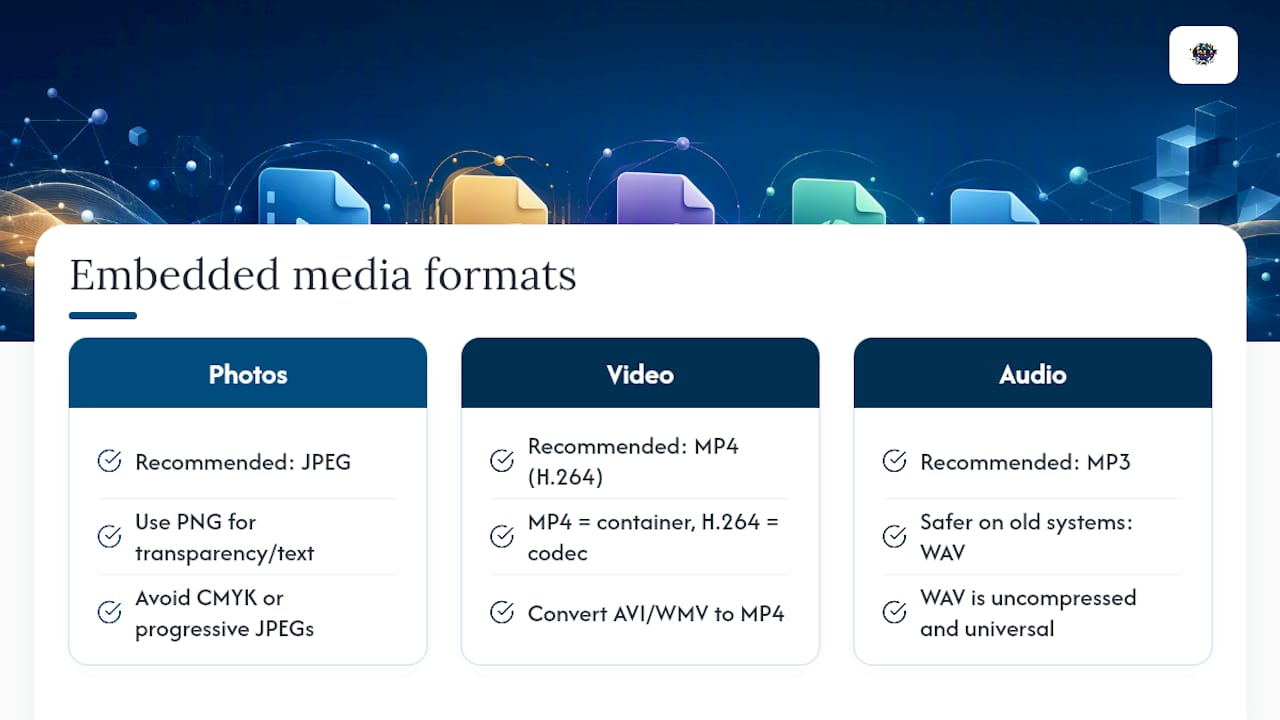
For photographs, JPEG is the practical choice. It’s small, universally supported, and looks great at normal viewing distances. PNG takes over when you need transparency (logos, graphics with clean edges) or when text needs to stay perfectly sharp, since PNG doesn’t introduce the compression artifacts JPEG can leave around fine detail. According to Adobe’s file format guidance, those two formats cover nearly every still-image need inside a presentation. One caution: some older projectors choke on CMYK color profiles or progressive-scan JPEGs, so stick with standard RGB baseline JPEGs unless you’ve tested the specific hardware.
For video, MP4 using the H.264 codec is the closest thing to a universal standard. It’s worth understanding the difference between a container and a codec here: MP4 is the container, H.264 is what’s actually compressing the picture inside it. A file can be labeled .mp4 and still use an unusual codec that a given laptop can’t decode. Older formats like AVI or WMV are far less predictable across devices and should be converted to MP4 before an event whenever possible.
For audio, MP3 works fine for background music or narration in most modern setups. WAV is the safer bet on older sound systems or venue equipment where you’re not sure what audio drivers are installed, since it’s uncompressed and universally decodable.
A quick note on embedding versus linking: embed your media directly into the slideshow file whenever the software allows it. Linked files break the instant the presentation moves to a different folder, laptop, or USB drive, which happens constantly at events. If a file is too large to embed, carry a local copy in the same folder as your presentation, never rely on cloud links at a venue with spotty Wi-Fi.
Compatibility: What Opens What (PowerPoint, Google Slides, Keynote and Viewers)
Match your format to the software on the other end, not just to what looks best on your own machine.
PowerPoint handles PPTX, PPT, PPSX, PDF export, and image export natively, along with MP4 video export. According to Microsoft’s own supported file formats page, importing older or non-native formats can occasionally drop certain animation effects or font substitutions, so it’s worth a quick review after conversion.
Google Slides imports both PPTX and ODP files, but Google’s own support documentation confirms it converts advanced animations and can substitute unavailable fonts during that process. Google Slides also has no native way to export a slideshow directly as MP4 video. If you need a video file from a Google Slides deck, the workaround is exporting to PDF or PPTX first, then converting through PowerPoint or a screen-recording pass.
Keynote on Mac reads and writes PPTX reasonably well, but complex builds, custom transitions, and certain fonts can shift when a deck crosses from Keynote to PowerPoint or back. If you’re sending a Keynote file to someone on Windows, export to PPTX rather than sending the native .key file, since most non-Mac users can’t open it at all.
When you genuinely don’t know what software the recipient has, or what device they’ll use, the safe move is sending two files: a PDF for guaranteed viewing and an MP4 if timing matters. That combination opens on essentially anything, no guesswork required.
A Concise Checklist: Pick a Format and Package Your Files for Reliable Playback
Run through this sequence before any event, meeting, or send-off:
Choose your primary working format (PPTX for most people, ODP if your organization uses open-source tools).
Export a PDF fallback the moment the content is finalized, before you add any last-minute animations.
If timing, music, or transitions matter, export an MP4 copy at your target resolution.
Gather all fonts and media files into one folder alongside the presentation, so nothing goes missing if you move it.
Test the final files on the actual device or projector you’ll use, not just your laptop screen.
On compression: don’t over-compress your photos chasing a smaller file size. A slightly larger PPTX that displays sharp on a projector beats a tiny file full of muddy JPEG artifacts. Save aggressive compression for email attachments, not the show file itself.
Pro Tip: Always carry a plain PDF and a local MP4 copy on a USB drive, even if you’re presenting from your own laptop. Event tech crews have seen every possible failure, and a fail-safe file that needs no software at all is the fastest way to keep a show on schedule.
How to Save or Export from PowerPoint, Google Slides and Keynote
In PowerPoint, use File > Save As for PPTX, PPT, or PPSX. For a PDF, choose File > Export > Create PDF/XPS Document. For images, File > Export > Change File Type lets you pick JPEG or PNG per slide. For video, File > Export > Create a Video gives you resolution presets from Standard to Ultra HD, along with an option to set how many seconds each slide displays if you haven’t recorded manual timings.
In Google Slides, go to File > Download and choose PPTX, PDF, or image formats (JPEG/PNG) per slide. Google Slides has no built-in video export, so if you need MP4, download as PPTX first, then use PowerPoint’s Create a Video tool, or record the presentation with screen-capture software.
In Keynote, use File > Export To, which offers PowerPoint (PPTX), PDF, Images, and Movie. The Movie export lets you set resolution and frame rate, and it’s the cleanest path to MP4 if your Keynote deck has custom builds or magic-move transitions you want preserved exactly as designed.
Terriffics Perspective: Lessons From Event Playback and Slideshow Creation
Formats look simple on paper until you’re standing next to a projector that refuses to read the file you handed it, highlighting the importance of thorough venue power planning to ensure reliable playback at events. Our standard practice on every job: bring the primary editable file, a PDF fallback, and a local MP4 copy, then run a full test on the venue’s actual equipment before guests arrive. That last step catches problems no spec sheet warns you about, an outdated HDMI adapter, a projector that only accepts 1080p, a sound system that hates compressed audio.
We’ve built out guidance on syncing slideshows to music and on scanning old photos correctly for exactly this reason: format choice and media prep decide whether a slideshow plays smoothly or stalls out mid-show. On-site, our troubleshooting checklist covers power access, codec compatibility, connection cables, and projector resolution, in that order, every time.
— Terriffics
Book Terriffics’ Slideshow Creation Service for Reliable Event Playback
Building the perfect file format matters less when someone else handles the encoding, testing, and playback for you. Terriffics Entertainment’s Event Slideshow Service is the alternative to troubleshooting export settings yourself the night before a wedding or graduation. We build your slideshow, encode it in the format that fits your venue’s equipment, and run it live on-site, so there’s no last-minute scramble over a corrupted PPTX or a projector that won’t read your MP4.
DIY exports carry real risk: a font that doesn’t travel, a codec the projector can’t decode, an animation that vanishes on conversion. Handing the job to a team that tests playback on real event equipment removes that risk entirely. Browse our full lineup of entertainment packages, including DJ, photo booth, and karaoke options you can bundle with your slideshow, and get a quote for your Oahu event today.
Sources
For readers who want the technical source material behind these format recommendations, Microsoft’s supported PowerPoint file formats page lists every extension PowerPoint reads and writes. The PPTX format description from the Library of Congress’s digital preservation program details the ISO/IEC 29500 standard behind Office Open XML. The OpenDocument Format specification covers ODP’s open-standard structure. For image and video export guidance, Adobe’s file formats reference explains when JPEG, PNG, or MP4 fits best.
FAQ
What Is the Best File Format for a Slideshow?
There’s no single universal answer, it depends on what you’re doing with the file. Use PPTX for editing, PPSX for a ready-to-run presentation, PDF when the file must stay uneditable across any device, and MP4 when animations or music timing need to travel with the file intact.
What Is the Difference Between PPT and PPTX?
PPT is the older binary format from PowerPoint 97 through 2003, while PPTX is the modern ZIP-based XML format Microsoft introduced with Office 2007. PPTX files are smaller, less prone to corruption, and standardized under ISO/IEC 29500, whereas PPT files are best reserved for opening decks on very old software.
What Are the Four Main Types of Presentation File Formats?
Presentation files generally fall into four categories: editable formats (PPTX, PPT, ODP), auto-run show formats (PPSX, PPS), fixed-layout share formats (PDF), and media export formats (MP4 for video, JPEG/PNG for images). Which category you need depends on whether the recipient will edit, view, or repurpose the content.
What Program Opens a PPTX File?
Microsoft PowerPoint opens PPTX natively, and Google Slides and Apple Keynote can both import PPTX files, though complex animations and certain fonts may shift slightly during that conversion. If the recipient has no presentation software installed at all, exporting a PDF or MP4 version guarantees they can still view the content.
Does Terriffics Entertainment Handle Slideshow Formatting for Events?
Yes. Terriffics Entertainment’s Event Slideshow Service builds and encodes slideshows for weddings, graduations, and other Oahu events, then tests playback on-site before guests arrive. Pricing for the service is available directly on our services page.
Recommended
This article was created with the assistance of AI and reviewed for relevance and accuracy by Terriffics Entertainment. Information may change over time, so readers should verify important details with the appropriate local source.
Comments